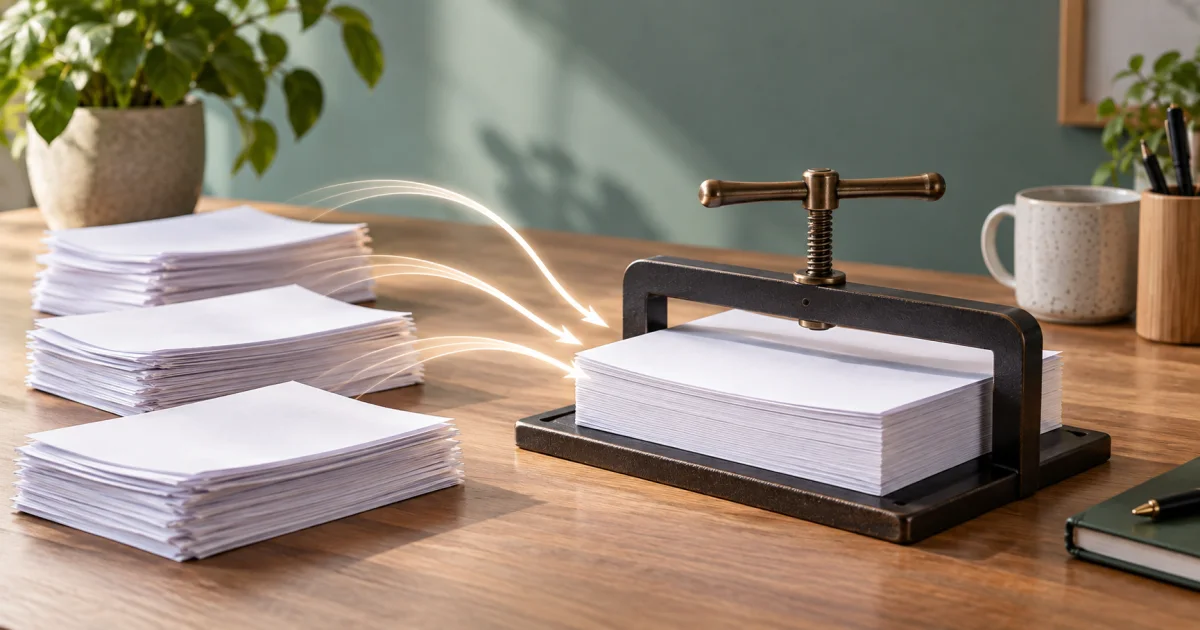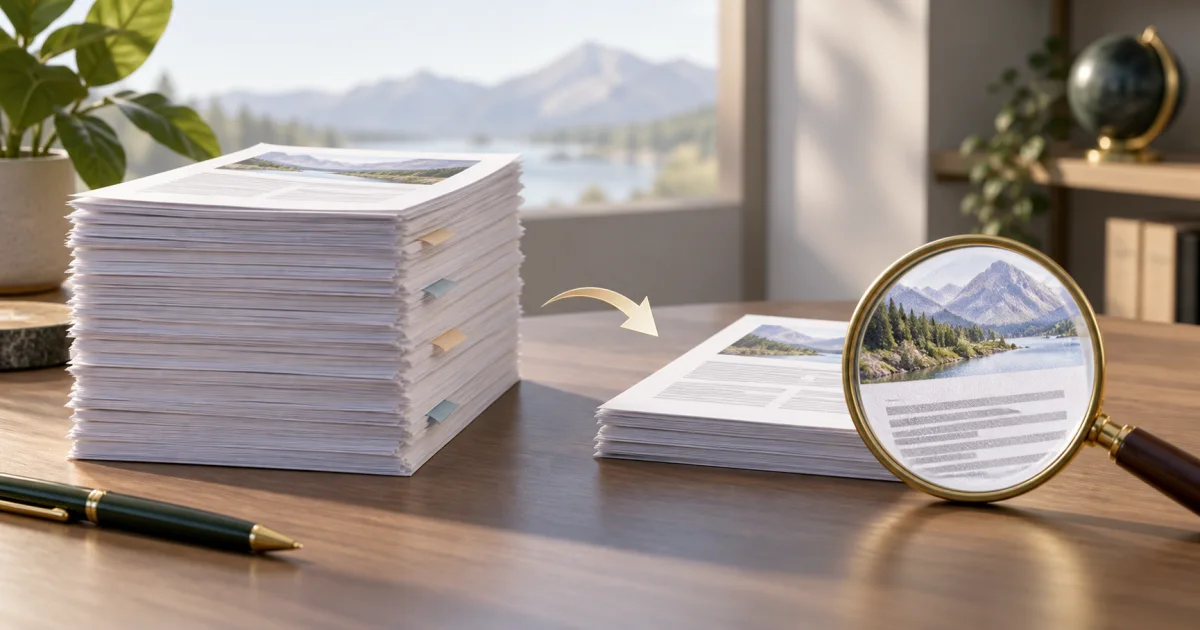
The FindUtils PDF Compressor rewrites a PDF and can recompress embedded JPEG images. Start with a copy, choose a level, and inspect the output. Savings depend on the document; stronger compression can change image detail.
Large PDFs are hard to email, slow to upload, and expensive to store. A 50MB PDF can become 5MB with the right compression settings, making it essential for document sharing, especially for people with limited bandwidth or storage.
Why Compress PDFs
Faster Email — Smaller files can reduce transfer time Easier Upload — Check the receiving service’s current attachment or upload limit Mobile-Friendly — Mobile users benefit from smaller downloads Storage Savings — Total savings equal the sum of measured changes across the files Professional — Small files look better when shared
Compression Types Explained
Lossless compression preserves the data that the compression operation receives. Lossy image compression changes pixel values. A PDF can contain both text objects and multiple image formats, so one setting does not affect every part equally.
The FindUtils low setting rewrites the PDF with object streams and does not recompress images. Medium and high settings can recompress embedded JPEG images. Other image encodings do not follow the same JPEG path.
A successful rewrite is not an exact-file preservation claim. Keep original documents when signatures, forms, accessibility information, or archive requirements matter.
Getting Started
Use the FindUtils PDF Compressor to reduce PDF file sizes instantly. FindUtils compresses PDFs directly in your browser.
Step-by-Step PDF Compression
Step 1: Upload Your PDF
Open the PDF Compressor and upload your PDF file.
Step 2: Choose Compression Level
| Level | JPEG quality setting | JPEG dimensions | Standard metadata fields |
|---|---|---|---|
| Low | No recompression | Unchanged | Not explicitly cleared |
| Medium | 0.75 | Unchanged | Cleared |
| High | 0.5 | Scaled to 75% of width and height | Cleared |
The tool uses a recompressed JPEG only when its byte count is smaller. These quality values are encoder settings, not promised savings. Metadata clearing is not a complete sanitization process.
Step 3: Preview (Optional)
Before compressing, preview what the PDF looks like at your chosen compression level:
- Text remains readable
- Images are acceptable
- No major visual degradation
Step 4: Compress
Click "Compress PDF". Processing typically takes 5-30 seconds depending on file size.
Step 5: Download
Download your compressed PDF. Compare file sizes:
- Original: 50MB
- Compressed: 5MB (90% reduction)
What the compressor changes
The compressor rewrites the PDF with object streams. Medium and high settings can replace embedded JPEG streams with smaller recompressed versions. High can also reduce their dimensions.
The metadata step clears standard title, author, subject, keyword, creator, and producer fields. It does not establish that every hidden value, attachment, or annotation is removed. The tool does not intentionally replace embedded fonts with system fonts or convert every image to grayscale.
Open the exported PDF and inspect all pages. Check searchable text, fonts, images, page size, and any forms or signatures required by the receiving workflow.
Common Compression Scenarios
Scanned document
A scanned PDF can contain JPEG or other image streams. Start with the lowest setting that meets your file-size requirement. Inspect small text and scan marks after export. A PDF without eligible JPEG streams may gain little from stronger settings.
Business report with photographs
Compare medium and low settings on the same source. Check charts and photograph detail separately. A readable body paragraph does not prove that labels in an embedded image remain readable.
Signed or archival document
Retain the authoritative original. A rewritten PDF can fail a signature or preservation requirement even if it looks unchanged. Use a workflow approved for the document's purpose.
Presentation PDF
Check gradients, screenshots, and diagrams on each page. High settings can downscale JPEG images, which matters when a slide contains small labels. Test the exported document at its intended presentation size.
Batch Compression
Single Files
Use FindUtils' online compressor for 1-2 files. Simple, fast, no installation required, and your files never leave your device.
Multiple Files
For 10+ PDFs, batch tools are faster:
# Using Ghostscript (available on macOS/Linux)
gs -sDEVICE=pdfwrite -dCompatibilityLevel=1.4 \
 -dPDFSETTINGS=/ebook -o compressed.pdf original.pdf

# For multiple files
for file in *.pdf; do
 gs -sDEVICE=pdfwrite -dCompatibilityLevel=1.4 \
 -dPDFSETTINGS=/ebook -o "compressed_$file" "$file"
done
Online tools are fine for occasional use; CLI tools are faster for bulk operations.
Common Compression Mistakes
Mistake 1: Over-Compressing
Setting compression too aggressive makes documents unreadable. Always preview before downloading.
Right: Medium compression, check result Wrong: Maximum compression without previewing
Mistake 2: Losing Originals
Always keep the original PDF. Compression is permanent and reduces quality.
Workflow:
- Keep original.pdf backed up
- Compress to compressed.pdf
- Share compressed.pdf
- Keep original.pdf
Mistake 3: Compressing Already-Compressed PDFs
Compressing an already-compressed PDF causes additional quality loss.
Right: Compress once from original Wrong: Compress PDF, then compress the result
Mistake 4: Using Wrong Compression Type
Different PDFs need different compression. Scanned documents compress well; text PDFs less so.
Scanned PDFs: Use lossy, maximum compression (huge reduction) Text PDFs: Use lossless compression (smaller reduction)
Tools Used in This Guide
- PDF Compressor — Rewrite PDFs with selectable image compression
- PDF Merger & Splitter — Combine or split PDFs before/after compression
- PDF to Image Converter — Extract images for individual compression
FAQ
Q1: How much can I compress a PDF? A: The result depends on the existing document and selected level. Compare the byte size after export. Some PDFs do not become smaller.
Q2: Does compression damage the PDF? A: No. Compression can change images or document behavior. Open and inspect the exported PDF.
Q3: Can I restore a compressed PDF to original quality? A: No. Compression is permanent. Always keep your original.
Q4: What compression level should I use? A: Start with Low. If the result is too large, compare Medium or High and inspect the affected images. Use the smallest result that meets your document requirements.
Q5: Are compressed PDFs safe to share? A: Yes. Review content and hidden data before sharing. Compression is not a security or sanitization check.
Q6: What's the file size limit? A: Browser memory, document complexity, and any limit shown in the selector affect processing. Split the task or use another suitable application if it cannot complete.
Q7: Is it safe to compress sensitive PDFs online? A: The PDF compression path processes selected files in the browser. This does not certify the device or workflow for confidential material. Keep an original copy and inspect the exported document.
Q8: Will compressed PDFs work on all devices? A: Yes. Check the receiving PDF application. A successful browser export is not a guarantee for every viewer.
Next Steps
- Learn PDF Merging and Splitting to combine compressed PDFs
- Master PDF Editing to modify compressed PDFs
- Return to PDF Tools Guide
Compress smart, share small! 📦