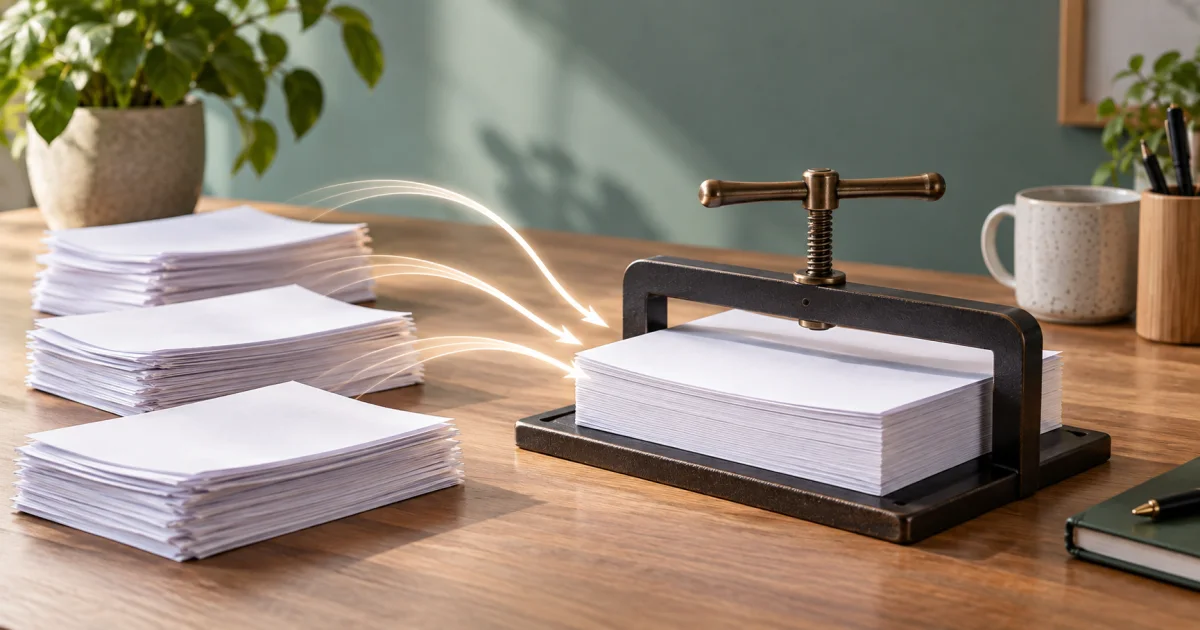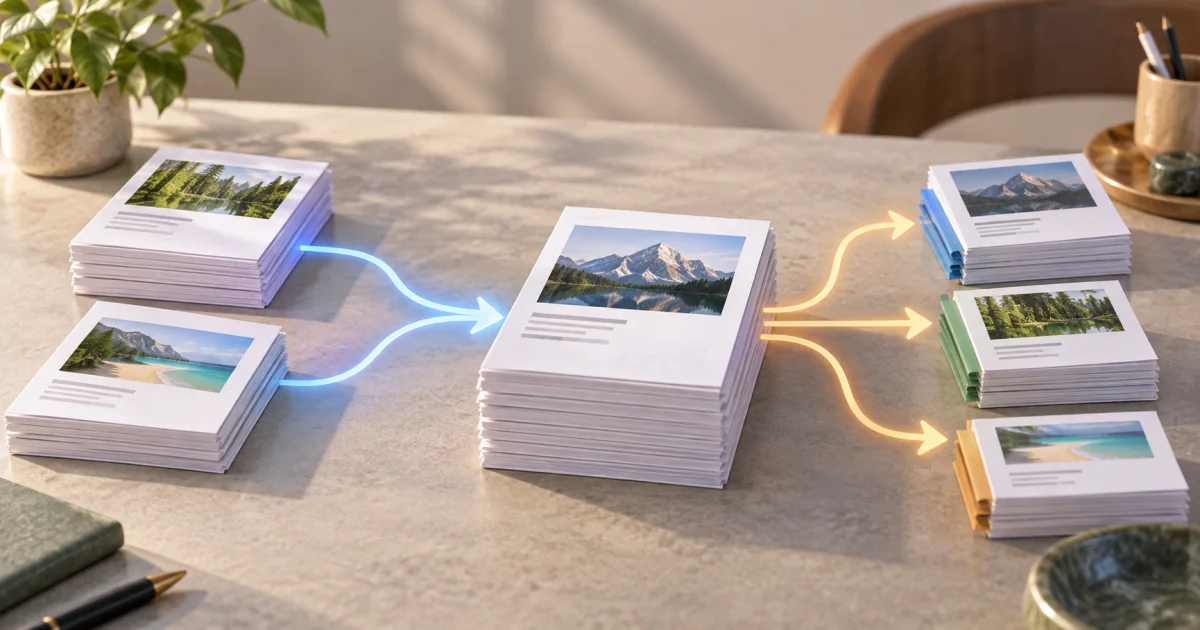
You can merge multiple PDFs into one document or split large PDFs into smaller files using the FindUtils PDF Merger & Splitter — available without signup, with no account required. Processing happens entirely in your browser — nothing is uploaded to servers, so your documents stay private.
Whether you're assembling a report from chapters or sending a single chapter to a colleague, FindUtils makes merging and splitting PDFs simple without desktop software.
Why Merge PDFs
Combine Reports — Merge chapters into complete documents Batch Processing — One PDF per table of contents instead of 10 files Standardization — Single document for backup and archiving Easy Sharing — One file instead of email attachments Professional — Complete report looks polished
Why Split PDFs
Selective Sharing — Send only relevant pages to recipients Reduce Size — Smaller files for faster downloads Organize — Extract sections for different purposes Privacy — Remove sensitive pages before sharing Processing — Some tools have per-file limits (can split large PDFs)
Getting Started
Use the FindUtils PDF Merger & Splitter to combine or separate PDFs instantly in your browser.
Step-by-Step: Merging PDFs
Step 1: Upload PDFs
Open the FindUtils PDF Merger & Splitter and upload your files. You can upload 2-10 PDFs depending on file size.
Step 2: Arrange Order
Drag and drop to reorder PDFs. Tools typically show thumbnails of first pages so you can verify order:
- Report.pdf (page 1)
- Appendix.pdf (page 2)
- References.pdf (page 3)
Step 3: Merge
Click "Merge PDFs". Processing takes 5-30 seconds depending on total file size.
Step 4: Download
Download your combined PDF. It contains all pages from all source PDFs in order.
Step-by-Step: Splitting PDFs
Step 1: Upload PDF
Upload the PDF file you want to split.
Step 2: Choose Split Method
By Page Ranges
- Split: pages 1-10, 11-20, 21-30
- Useful: Separating chapters or sections
- Result: 3 PDFs
By Single Pages
- Extract: page 5, page 12, page 20
- Useful: Selecting specific pages to share
- Result: Multiple single-page PDFs
Every N Pages
- Split: every 5 pages
- Useful: Creating consistent chunks from long documents
- Result: Multiple PDFs with 5 pages each
Step 3: Preview
Before splitting, preview the pages you're extracting to ensure they're correct.
Step 4: Split & Download
Click "Split" and download your PDFs. Each split file is independent and complete.
Common Merge Scenarios
Scenario 1: Multi-Chapter Report
Task: Combine 5 chapters into one report
- chapter-1.pdf (15 pages)
- chapter-2.pdf (12 pages)
- chapter-3.pdf (18 pages)
- chapter-4.pdf (10 pages)
- chapter-5.pdf (20 pages)
Result: complete-report.pdf (75 pages)
Process:
- Upload all 5 files in order
- Verify order: Chapter 1 → Chapter 2 → ... → Chapter 5
- Merge into complete-report.pdf
- Recipients get single file instead of 5 attachments
Scenario 2: Combining Scans
Task: Merge 10 page scans into one document
- scan-page-1.pdf
- scan-page-2.pdf
- ... (through page 10)
Result: document-complete.pdf (10 pages)
Process:
- Upload all scans in correct order
- Merge into single document
- Compress if needed for email
Scenario 3: Building a Portfolio
Task: Combine portfolio pieces into one PDF
- cover-letter.pdf
- resume.pdf
- portfolio-pieces.pdf
- references.pdf
Result: complete-portfolio.pdf
Process:
- Upload in order: Cover → Resume → Portfolio → References
- Merge into complete-portfolio.pdf
- Send as one professional document
Common Split Scenarios
Scenario 1: Extracting Chapter from Report
Task: Send only Chapter 3 to a colleague Original: 75-page report (chapters 1-5) Extract: Pages 31-50 (Chapter 3 only) Result: chapter-3.pdf (20 pages)
Scenario 2: Privacy-Sensitive Sharing
Task: Send report but remove salary information on page 42 Original: 50-page report with sensitive data Split: Pages 1-41, 43-50 (skip page 42) Result: public-version.pdf (49 pages)
Scenario 3: File Size Reduction
Task: Split 500MB PDF into smaller chunks Original: 500MB (1000 pages) Split: Every 100 pages Result: 10 PDFs (50MB each)
Reason: Email limits (25MB), upload limits (100MB per file)
Scenario 4: Organizing Documents
Task: Extract specific invoices from 200-page ledger Original: All invoices (200 pages) Extract: Pages for January, May, September Result: 3 PDFs (one per month)
Advanced Merging
Merging with Different Formats
Many tools merge not just PDFs, but also:
- Word documents (.docx) → merged with PDFs
- Images (JPG, PNG) → converted to pages, merged with PDFs
- Spreadsheets (XLSX) → converted to PDF pages, merged
Example:
- report.docx (Word document)
- images.jpg (image files)
- data.pdf (existing PDF)
- → Merged to: complete-package.pdf
Batch Operations
For merging 10+ PDFs, use command-line tools:
# macOS/Linux: Using pdfcat (or similar)
pdfcat file1.pdf file2.pdf file3.pdf -o merged.pdf

# Or using Ghostscript
gs -sDEVICE=pdfwrite -o merged.pdf file1.pdf file2.pdf file3.pdf
Much faster than uploading to web tools.
Workflow: Report Assembly
Complete workflow combining multiple PDFs:
- Source documents:
- title-page.pdf (1 page)
- table-of-contents.pdf (2 pages)
- introduction.pdf (5 pages)
- chapter-1.pdf (20 pages)
- chapter-2.pdf (18 pages)
- conclusion.pdf (8 pages)
- references.pdf (4 pages)
-
Merge in order: Upload in correct sequence, merge into: final-report.pdf (58 pages)
-
Compress (optional): Use PDF Compressor to reduce file size for distribution
-
Share: Send final-report.pdf to stakeholders
Workflow: Selective Document Distribution
Send relevant sections to different recipients:
-
Original: complete-project.pdf (100 pages)
-
Split:
- Pages 1-10: executive-summary.pdf → To executives
- Pages 11-50: technical-details.pdf → To engineers
- Pages 51-80: financial-analysis.pdf → To finance team
- Pages 81-100: appendix.pdf → To specific team members
-
Download: 4 separate PDFs, each tailored to recipient
-
Email: Send relevant PDF to each group
Common Merging Mistakes
Mistake 1: Wrong Order
Uploading PDFs in wrong order creates confusing merged result.
Right: Upload in order (Chapter 1, 2, 3...) Wrong: Random order (Chapter 3, 1, 2...)
Fix: Reorder using drag-and-drop before merging.
Mistake 2: Forgetting to Rename
Merged PDF defaults to generic name "merged.pdf" or "combined.pdf".
Right: Rename after download: "final-report.pdf" Wrong: Keep generic name, lose context
Mistake 3: Losing Originals
Always keep source PDFs backed up. Merging deletes them from temporary storage.
Workflow:
- Keep originals in "original/" folder
- Merge into "merged/" folder
- Backup "original/" folder
Mistake 4: Over-Splitting
Extracting single pages creates too many files. Use page ranges instead.
Right: Extract pages 1-20 as one PDF Wrong: Extract pages 1, 2, 3, 4... (20 separate PDFs)
Tools Used in This Guide
- PDF Merger & Splitter — Combine multiple PDFs or extract specific pages
- PDF Compressor — Reduce file size after merging
- Word to PDF Converter — Convert source documents before merging
FAQ
Q1: How many PDFs can I merge? A: Typically 10-20 depending on file size and tool. Online tools have combined size limits (usually 100-500MB total).
Q2: Does merging reduce quality? A: No. Merging preserves all original content and quality.
Q3: Can I merge PDFs with different page sizes? A: Yes. Most tools align pages left-top and merge. Result may look odd if sizes vary dramatically.
Q4: Is the merged PDF secure? A: Page operations can change document-level features, including signatures and restrictions. Inspect the output and keep the original. Local processing does not certify the complete device or workflow.
Q5: How do I split a specific page range? A: Upload the PDF, choose "by page range," enter start and end pages (e.g., 10-20), and split.
Q6: Can I split every other page? A: Yes, some tools support custom page selection. Click individual pages to select or deselect.
Q7: What if split PDFs are too small? A: You're extracting too few pages. Use larger page ranges (e.g., 1-50 instead of 1-10).
Next Steps
- Learn PDF Compression to optimize merged files
- Master PDF Editing to modify documents
- Return to PDF Tools Guide
Merge with clarity, split with precision! 📄