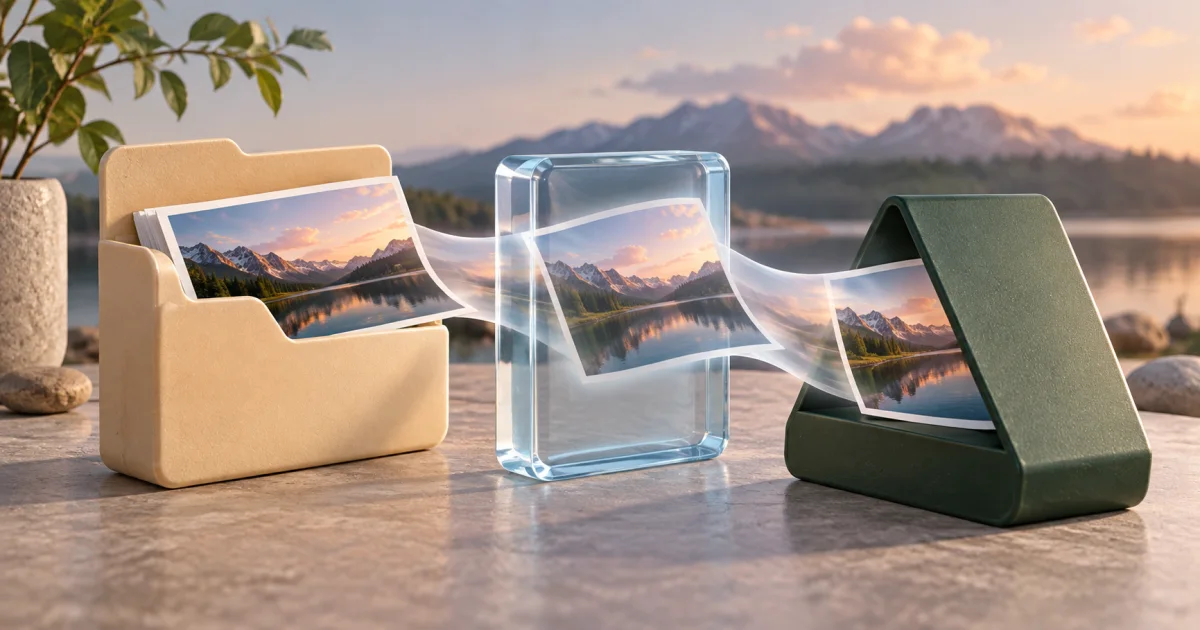
Choose an output format that the destination accepts, then convert a copy of the image. Use the FindUtils Image Converter for supported browser exports or the Image Compressor for AVIF. Check the actual file type, transparency, and visual result. A renamed extension does not prove a format conversion.
Different formats serve different purposes. A format perfect for a website photo might be terrible for a logo. This guide teaches you when and how to convert between formats using online tools.
Format Quick Reference
| Format | Useful starting point | Important limit |
|---|---|---|
| JPEG | Photographs and broad file compatibility | Lossy output; no alpha transparency |
| PNG | Screenshots, diagrams, and transparent graphics | Can be large for photographs |
| WebP | Web photographs and graphics | The destination must support it; encoding can be lossy |
| AVIF | Alternative web image encoding | Compare actual size, quality, and encoding cost |
| GIF | Existing palette-based animation | A static canvas export does not preserve animation |
Format capabilities are different from the options implemented by a specific tool. Use the MDN image format reference for format details.
Tools for Converting Formats
The general Image Converter draws the selected image on a canvas. It offers PNG, JPEG, WebP, GIF, BMP, and ICO labels. PNG is the required browser canvas format; unsupported requested types can fall back to PNG. See the canvas export reference.
Do not assume that a GIF or BMP label proves those encoded bytes. Inspect the downloaded file type. This converter also flattens animated input to a still image. Its ICO path creates a 32 by 32 pixel icon.
For AVIF encoding, use the Image Compressor, which has an AVIF encoder. Keep animation conversion separate from still-image conversion.
When to Convert JPG to PNG
Convert a JPEG to PNG when the receiving application requires PNG or when you need a lossless intermediate for later edits. The conversion cannot restore detail already lost in JPEG compression.
PNG supports transparency, but converting a JPEG does not remove its background. The original JPEG pixels remain opaque unless another operation creates an alpha channel.
- Select the JPEG file.
- Choose PNG output.
- Download the candidate.
- Compare its dimensions, colors, and file size.
Do not assume that a larger PNG is higher quality than its JPEG source.
When to Convert PNG to JPG
A PNG photograph can be a useful candidate for JPEG when the destination requires JPG or file size matters. Text, line art, and transparent graphics need extra care because JPEG introduces compression artifacts and has no alpha channel.
- Keep the original PNG.
- Select JPEG output.
- Choose an initial quality setting.
- Compare edges and fine detail in the result.
- Check the background color before sharing.
The FindUtils general converter fills transparent areas with white for JPEG output. A quality setting of 85 does not mean that 85% of the original information remains.
Converting to WebP
WebP can be useful for web images, including images with transparency. Support for alpha does not mean that the color data was encoded losslessly.
- Select a supported source image.
- Choose WebP output.
- Adjust the available quality control.
- Compare the result with the source.
- Confirm that the destination accepts WebP.
Measure the actual byte reduction. Different images and encoder settings can produce different results; there is no fixed saving over JPEG or PNG.
Converting to AVIF
Use the Image Compressor when you need an AVIF output from a supported still image. Compare it with JPEG or WebP at a similar acceptable visual quality. Equal numeric quality settings across encoders are not equivalent.
Serve a Fallback When Required
A website can offer multiple image formats through a picture element:
<class="text-rose-400">picture>
 <class="text-rose-400">source srcset="image.avif" type="image/avif">
 <class="text-rose-400">source srcset="image.webp" type="image/webp">
 <class="text-rose-400">img src="image.jpg" alt="Red ceramic mug on a wooden table">
</class="text-rose-400">picture>
The browser chooses a supported source according to the element's rules. This ordering does not prove that AVIF is the smallest file. Verify the actual files and target browsers.
Batch Format Conversion
For converting many images at once, use CLI tools:
ImageMagick:
mogrify -format webp -quality 85 *.jpg
Converts all JPGs to WebP at once.
FFmpeg:
for file in *.png; do ffmpeg -i "$file" -c:v libaom-av1 "${file%.png}.avif"; doneBatch convert PNGs to AVIF.
FindUtils works well for quick 1-2 file conversions; use CLI for batch converting 10+ files.
Format Decision Tree
START: You have an image

Is it a PHOTO?
├─ YES → Go to Photo Path
└─ NO → Go to Graphic Path

PHOTO PATH:
Is transparency needed?
├─ YES → Compare PNG and WebP with alpha support
└─ NO → Use WebP or JPG 85%

GRAPHIC PATH:
Is transparency needed?
├─ YES → Use PNG or WebP
└─ NO → Use WebP or PNG

Final step: Always test compression
- Compare original vs converted
- If imperceptible quality loss → good
- If noticeable degradation → adjust settings
Example: An Animated Logo
An animated logo needs an animation-capable export. The general Image Converter creates a still image from decoded input, so it cannot preserve the full animation.
For a video destination, use the GIF to Video workflow. For a static document, choose a representative still frame. For animated WebP, use a converter that explicitly supports all frames and timing.
Compare the actual outputs. Check duration, frame changes, transparency, loop behavior, and destination support. No fixed percentage saving applies to every animation.
Tools Used in This Guide
- Image Converter — Convert supported still images with the output limits described above
- Image Compressor — Reduce file size after conversion
- Image Resizer — Adjust dimensions to match format requirements
FAQ
Q1: Should I convert everything to WebP? A: No. Choose according to the destination, image content, and acceptable quality. Keep the original editing file.
Q2: Can I convert back from WebP to JPG without quality loss? A: JPEG export is lossy. It cannot restore detail lost in a previous encoding. Keep a lossless or original source for later editing.
Q3: What about GIF images? A: The general Image Converter produces a still image. Use an animation-aware converter or the GIF to Video tool when all frames must survive.
Q4: Is AVIF safe to use now (2026)? A: Check the destination application and browser requirements. Offer a fallback if the audience needs it. AVIF support does not establish whether a particular file is suitable.
Q5: How do I convert images on my phone? A: Use online converter tools (like this one) or download an app. Most phones have built-in format conversion.
Q6: Should I compress before or after format conversion? A: Either order works, but converting first is more logical. Format choice affects compression.
Next Steps
- Master Image Compression for file size reduction
- Learn Image Resizing to optimize for all devices
- Return to Image Tools Guide