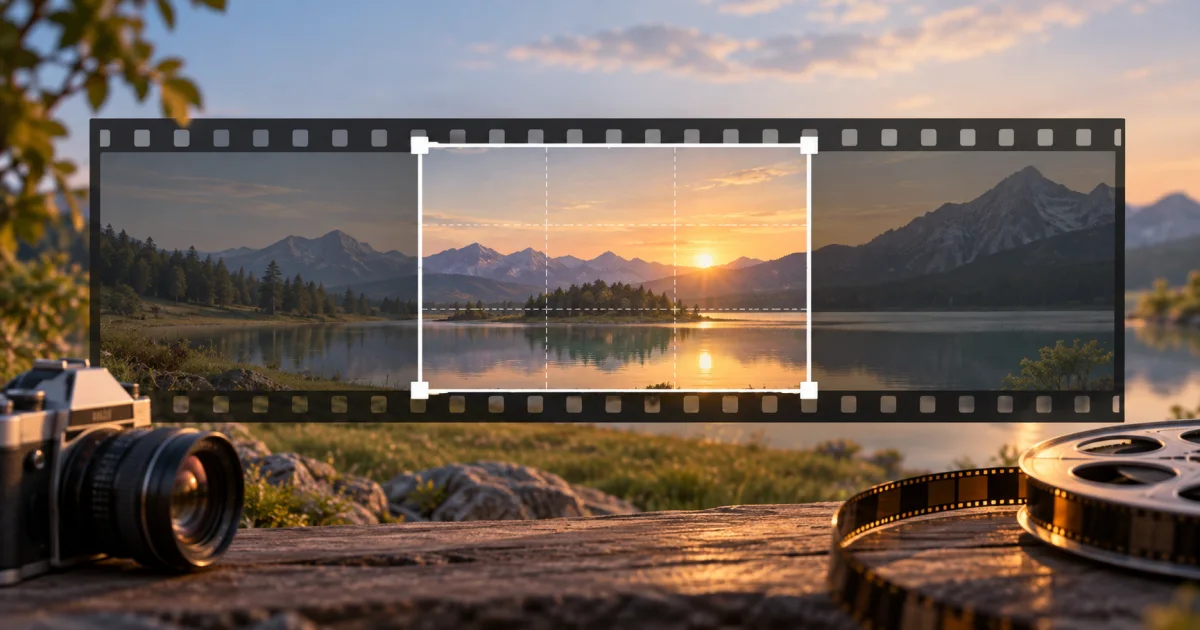
Cropping a video removes the parts of the frame outside a selected rectangle. The FindUtils Video Cropper lets you load a local file, select that rectangle, and export the retained region. It processes the selected file in the browser. Export support depends on the input codecs and the browser's conversion support.
Use cropping to change what the viewer sees. Use resizing to change pixel dimensions. This guide covers frame selection, ratio presets, output formats, and the checks to make before publication.
When to Crop a Video
A crop can remove a border, isolate a subject, or change a landscape composition into a square or vertical composition. It removes picture information. It does not extend the scene beyond the original frame.
Crop a video when:
- A border is part of the recording — select the picture area inside the border.
- The subject occupies a small area — select the region that contains the subject and necessary context.
- The destination needs another shape — choose a ratio that suits the intended placement.
- A screen recording includes an unwanted edge — exclude that edge from the selection.
A fixed crop applies throughout the clip. Check moving subjects at several points in the recording. A rectangle that works in the opening frame can cut off later action.
How to Crop a Video Online
Keep the original file. Follow these four steps with a short sample before you process a longer recording.
Step 1: Load the Video
Open Video Cropper and select the file. The file picker accepts MP4, WebM, MKV, and MOV. A supported extension does not prove that the browser can decode the video and audio inside it.
Wait for the preview to load. If the preview fails, try a known playable sample. The local-file operation reads the selected file in the browser. This describes the video operation; it is not a claim that the whole page makes no network requests.
Step 2: Select the Region to Keep
Drag the selection box over the subject. Use its handles to change its size. The pixel readout gives the selected region's position and dimensions.
Leave room for movement and captions. Review the start, middle, and end of the clip. The crop does not track a moving subject automatically.
Step 3: Choose an Aspect Ratio
Select Free, 1:1, 16:9, 9:16, 4:3, or 3:4. A ratio preset creates a centered selection that fits within the source frame.
A manual adjustment returns the selection to Free mode. Check the pixel readout after you move or resize the box. Do not assume that a later manual adjustment keeps the chosen ratio locked.
Step 4: Export and Review
Select Crop Video. Wait for processing to complete, then preview and download the result. Check the saved file's framing, dimensions, duration, and audio.
The operation crops the video without an explicit instruction to remove audio. Audio compatibility still depends on the input and output formats. Do not rely on an unconditional audio-preservation promise. Listen to the saved result before you replace the original.
Crop Ratios and Pixel Dimensions
An aspect ratio describes width relative to height. It does not specify a fixed resolution. These examples show different possible crop dimensions:
| Ratio | Shape | Example crop dimensions | Composition use |
|---|---|---|---|
| 16:9 | Wide landscape | 1920×1080 | A broad scene or screen recording |
| 9:16 | Tall portrait | 1080×1920 | A vertical subject |
| 1:1 | Square | 1080×1080 | A centered subject |
| 4:3 | Landscape | 1440×1080 | A less wide composition |
| 3:4 | Portrait | 1080×1440 | A taller composition with more side space |
The source frame limits the available crop dimensions. For example, a 1920×1080 landscape source cannot contain a 1080×1920 rectangle. A vertical crop from that source retains fewer pixels. Increasing its size later does not recover the removed detail.
Check the destination's current requirements before you publish. A ratio alone does not guarantee acceptance, visibility, or search performance.
Output Formats and Processing Limits
The tool selects the output container from the input filename extension. WebM and MKV filenames select WebM output. Other accepted filenames select MP4 output.
| Input filename extension | Requested output | Download suffix |
|---|---|---|
.webm or .mkv | WebM | _cropped.webm |
.mp4 or .mov | MP4 | _cropped.mp4 |
A filename extension does not change the encoded tracks inside a file. If conversion fails, use a compatible source or another editor. Renaming a file is not a codec conversion.
The crop workflow has no user-selectable quality setting. Processing time depends on clip length, dimensions, codec support, and device resources. This guide does not state a measured export time or a fixed quality loss.
The tool focuses on one selected region. Use a full editor when the work needs tracked crops, transitions, color adjustments, or multiple audio tracks.
Common Cropping Mistakes
Cutting Off Later Action
Check the entire clip, not only its opening frame. Leave more space around a moving subject. If the required region changes during playback, use an editor with crop keyframes or tracking.
Confusing Cropping with Resizing
Cropping removes frame areas. Resizing scales the selected picture to new dimensions. The Video Resizer performs a separate operation. Its current export omits audio, so check its limits before you use it after cropping.
Keeping Too Few Source Pixels
A tight crop can leave a small image. Start with the highest-resolution original available. Compare the cropped result at its intended display size before you increase its dimensions.
Processing Footage You Do Not Need
Trim an unnecessary beginning or ending before a longer crop operation. The Video Trimmer is a related tool. Check the trimmed file's duration and audio before you use it as the crop source.
Replacing the Original Too Soon
Keep the original until you inspect the download. Check the beginning, middle, and end for framing and playback issues. Listen to the audio. A successful export message does not replace a review of the saved file.
Related Video Tools
- Video Cropper — Select a rectangular frame region.
- Video Resizer — Change dimensions; its current WebM export omits audio.
- Video Trimmer — Select a time interval before cropping.
- Mute Video — Remove audio when you need a silent clip.
FAQ
Q1: Can I crop a video without an account? A: The Video Cropper opens without an account. Its crop workflow processes a selected local file in the browser.
Q2: Does cropping keep the original audio? A: The operation does not explicitly remove audio. Compatible tracks can remain, but check the saved file because input and output codec support varies.
Q3: How do I make a square or vertical crop? A: Choose 1:1 for square or 9:16 for vertical. Review the centered selection. A manual adjustment returns the tool to Free mode.
Q4: Does a ratio preset set the export to 1080 pixels? A: No. The preset sets the crop shape. The selected region and source dimensions determine the pixel size.
Q5: Does the crop add a watermark? A: The crop operation does not add a watermark layer. Review any marks already present in the source recording.
Q6: Does cropping reduce quality? A: It removes source pixels outside the selection and processes the retained region. The final quality depends on the source and encoding. Review the export.
Q7: Why does an MP4 file fail? A: MP4 is a container. The browser must also support its encoded tracks and the requested conversion. Try a compatible sample or another editor.
Next Steps
- Read the Video Resizer guide before changing the cropped file's dimensions.
- Review a trimmed source with the Video Trimmer.
- Use Mute Video when the final clip must have no sound.