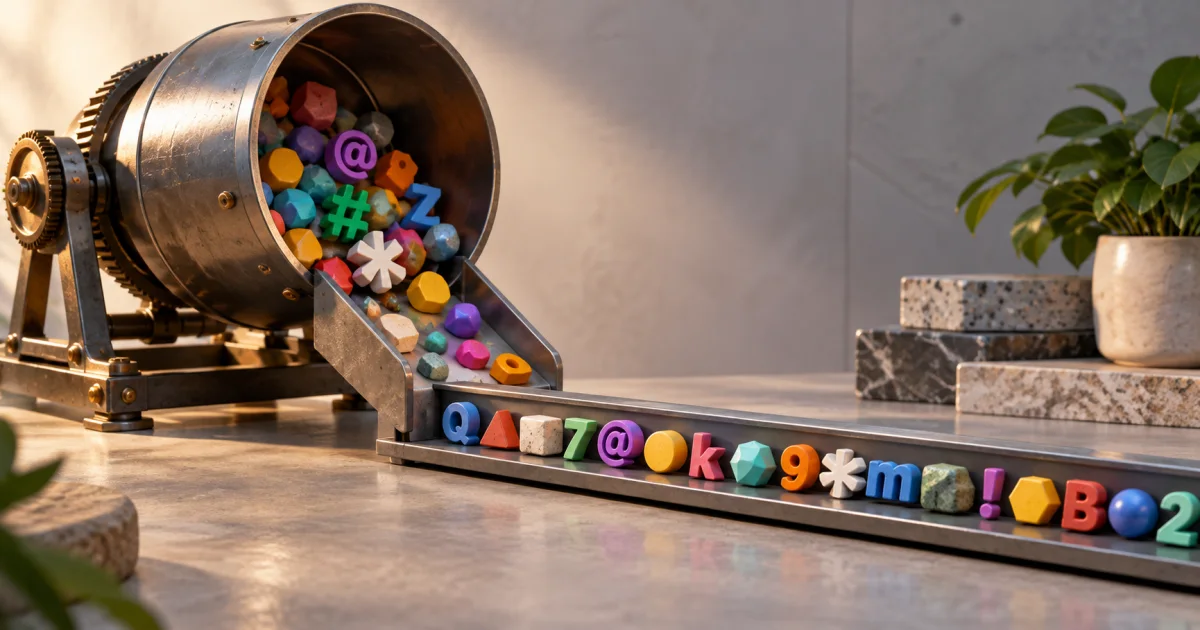
The FindUtils Password Generator creates random characters, word combinations, or PINs in the browser. Choose a length and character set that the account accepts. Use a different password for each account. The tool keeps generated history in browser local storage; clear that history when you no longer need it.
Why Random Passwords
No Patterns — Attacker can't guess based on your info Cryptographic Strength — Generated by secure algorithms Unique Per Account — One breach doesn't compromise all accounts Difficult to predict when generated correctly — Can't be derived from public information Account protection — Length and randomness help resist guessing. They do not prevent phishing, password reuse, or device compromise.
How Strong Password Generators Work
Entropy (Randomness)
True randomness is crucial. Weak generators might use:
- Predictable patterns
- Limited character pools
- Seeded randomness (repeatable)
Strong generators use:
- Cryptographic randomness
- All ASCII characters
- True unpredictability
Character Pool
Larger character pool = stronger passwords:
- Numbers only: 10 possibilities per character
- Lowercase letters: 26 possibilities
- Uppercase + lowercase: 52 possibilities
- Uppercase + lowercase + numbers: 62 possibilities
- All printable ASCII: 94 possibilities
Example: 12-character password
- Numbers only: 10^12 combinations (breakable)
- Uppercase + lowercase + numbers + symbols: 94^12 combinations (not a security guarantee)
Getting Started
Use the FindUtils Password Generator to create strong, random passwords with zero setup or account creation.
Step-by-Step: Generating a Password
Step 1: Open Generator
Open the Password Generator.
Step 2: Configure Options
Set your password preferences:
Length:
- Minimum: 8 characters (acceptable)
- Recommended: 12+ characters (strong)
- Very secure: 16+ characters
Character Types:
- Uppercase letters (A-Z)
- Lowercase letters (a-z)
- Numbers (0-9)
- Special characters (!@#$%^&*)
Step 3: Generate
Click "Generate Password". Tool creates a random password.
Example: K7mX$vL2nQp9R@
Step 4: Copy
Copy the password immediately using "Copy to Clipboard".
Step 5: Store
Paste into your password manager (not a text file, not sticky notes).
Step 6: Use
When creating account, paste the password instead of typing.
Password Length Matters
8 Characters
Cracking time: 3 hours with modern GPU
Examples: Abc123!x
Use for: Non-critical accounts (throwaway emails)
Strength: Weak
12 Characters
Cracking time: 200 years
Examples: K7mX$vL2nQp9
Use for: Regular accounts (social media, shopping)
Strength: Strong
16 Characters
Cracking time: Millennia
Examples: K7mX$vL2nQp9R@Yd
Use for: Critical accounts (email, banking, password manager)
Strength: Very strong
Recommendation
Use 12 characters minimum. 16 for critical accounts.
Character Type Selection
Uppercase + Lowercase + Numbers (Good)
Example: Abc123XyzDef456
Strength: 62^15 combinations (good)
Use for: Most accounts
Memorability: Difficult to remember (use password manager)
Uppercase + Lowercase + Numbers + Symbols (Excellent)
Example: Abc123@Xyz$Def#
Strength: 94^15 combinations (excellent)
Use for: Critical accounts
Note: Some websites don't allow symbols (poorly designed)
Numbers Only (Weak)
Example: 123456789012
Strength: 10^12 combinations (crackable)
Use for: Not recommended
Why: Limited character pool
Alphanumeric Only (Acceptable)
Example: abc123XYZ456def
Strength: 62^15 combinations (acceptable)
Use for: Websites that forbid symbols
Note: Less strong than with symbols
Common Password Generation Scenarios
Scenario 1: Creating New Account
Task: Sign up for email service
- Choose strong password (14 characters, all types)
- Use Password Generator
- Copy generated password
- Paste into sign-up form
- Store in password manager
- Never memorize or write down
Time: 1 minute
Scenario 2: Replacing Weak Password
Task: Old password is simple ("password123")
- Use Password Generator
- Generate 16-character password with symbols
- Save new password in password manager
- Go to account settings
- Change password to generated one
- Test login with new password
Time: 3-5 minutes
Scenario 3: Batch Password Creation
Task: Create 10 passwords for a team
- Use Password Generator
- Generate 10 unique passwords
- Store in password manager (shared team vault)
- Share access with team members
- Each person has their own unique password
Time: 5 minutes (vs 30 minutes manually)
Scenario 4: Passphrase Alternative
Task: Need memorable password (not recommended, but sometimes necessary)
Option 1: Use generator but write down
Generate: K7mX$vL2nQp9R@Yd
Write on sticky note (not secure)
Option 2: Create passphrase
3 random words: "BlueSky" + "Sunset" + "2025"
With numbers and symbols: "BlueSky$Sunset#2025"
14 characters, memorable (for you)
Note: Passphrases less secure than random, but better than weak passwords.
Password Reuse: The Danger
Why Reusing Passwords is Dangerous
Scenario: You use same password "MyPassword123" on 10 sites
- Site A gets breached
- Hackers get your password
- They try it on Gmail, Facebook, Twitter, etc.
- They gain access to all accounts
- They reset password on email
- They gain access to everything (password reset links)
Result: One breach = complete identity compromise
The Solution: Unique Passwords
- Email account:
K7mX$vL2nQp9R@Yd(16 char, critical) - Gmail:
mPqR#Vxy7nL$St2w(16 char, critical) - Banking:
Abc@Def123$Ghi456(16 char, critical) - Social media:
xyz123ABC@def456(12 char, less critical) - Shopping:
qwe123QWE@rty456(12 char, less critical)
Each site has completely different password. One breach ≠ all compromised.
Password Manager Integration
Workflow with Password Manager
- Generator creates password: Password Generator
- Manager stores password: Bitwarden, 1Password, etc.
- Manager generates password: Manager's built-in generator
- Manager autofills login: No manual typing needed
- Manager syncs across devices: Accessible everywhere
Setup Steps
- Install password manager app
- Create strong master password
- Let manager generate passwords for new accounts
- Let manager autofill on login
- Never manually type passwords
Result: Secure passwords everywhere, minimal effort
Special Character Considerations
Websites Allowing Symbols (Best)
Most modern websites allow: !@#$%^&*()
Use: Full symbol set for maximum security
Websites Forbidding Symbols (Poorly Designed)
Some old systems don't allow symbols (security anti-pattern).
Workaround: Use uppercase + lowercase + numbers only
Example: Abc123XyzDef456 (without symbols)
Still strong: 62^14 combinations
Passphrase Alternative
Passphrase Approach
Instead of random: K7mX$vL2nQp9R@Yd
Use words: BlueSky-Sunset-2025-Amazing!
Pros:
- Easier to remember (if you must)
- Still strong with 20+ characters
- Mix of words + numbers + symbols
Cons:
- Longer than random (type more)
- Dictionary words (slightly weaker)
Recommendation: Use random + password manager (don't memorize)
Browser Generation and Storage Limits
The FindUtils generator uses crypto.getRandomValues() to select values in the browser. It also stores generated history in browser local storage. That history is not an encrypted vault.
Save an account password in your chosen password manager. Clear the generator history after use. Handle clipboard contents and exported files separately.
A browser-based generator does not certify the device or protect against phishing. A remote generator has a different data path. Review the actual source and storage behavior instead of deciding safety from the interface alone.
Tools Used in This Guide
- Password Generator — Create secure random passwords
- Password Strength Checker — Verify password strength
- Text Encryptor — Encrypt passwords when storing temporarily
What a password score cannot prove
A strength meter cannot determine how a password was generated or whether someone already knows it. Use a different password for each account. A password manager can create and store those values. NIST authentication guidance explains password-verifier requirements.
Every password printed in this guide is public example text. Do not use an example as an account password.
FAQ
Q1: How long should my password be? A: Minimum 12 characters. 16 for critical accounts (email, banking).
Q2: Should I include symbols? A: Yes, if the website allows. Symbols increase strength significantly.
Q3: Can I reuse passwords? A: Absolutely not. One breach compromises all accounts with that password.
Q4: Should I memorize strong passwords? A: No. Use password manager to store them. Memorizing leads to weak passwords.
Q5: Is it safe to generate passwords online? A: Yes, if using browser-based generator. Check privacy policy for server-based tools.
Q6: How often should I generate new passwords? A: Change password immediately after suspected breach. Otherwise, no need to change regularly.
Q7: What if I lose my password? A: Most websites have "Forgot Password" feature. Reset via email. This is why email security is critical.
Next Steps
- Learn Password Strength to validate generated passwords
- Discover Encryption for temporary password sharing
- Explore Hashing for secure storage
- Return to Security Tools Guide
Generate strong, stay secure! 🔐