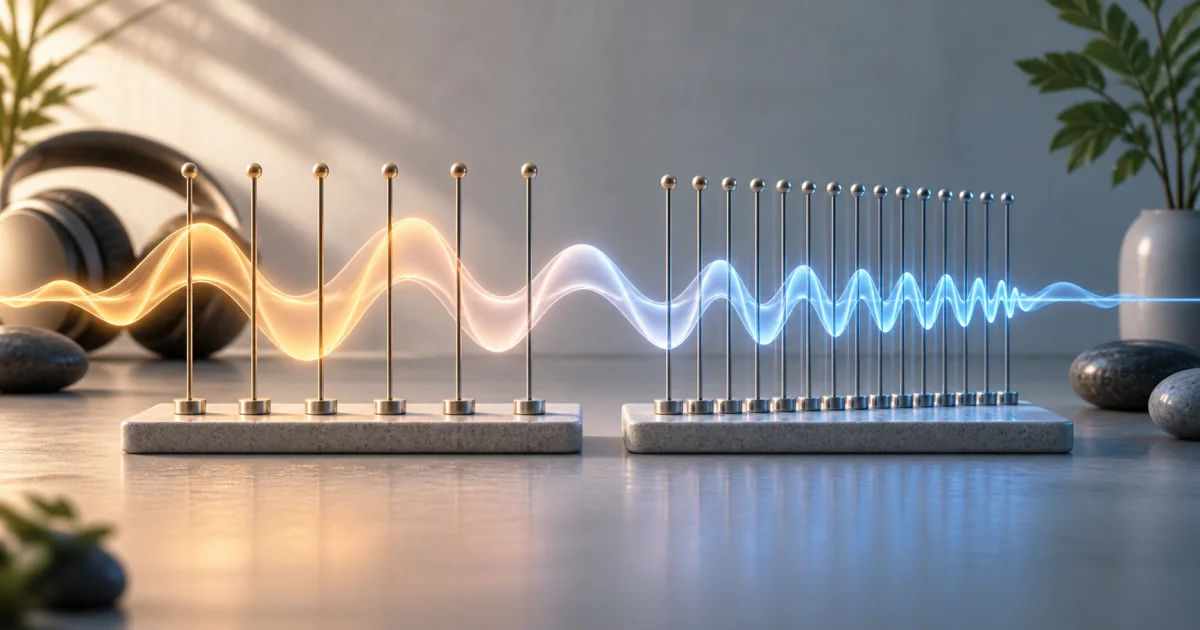
Use the FindUtils Audio Resampler to choose a target sample rate and export WAV. The browser decodes the full input before resampling it. Keep the source recording. Changing the sample rate does not recover missing detail or guarantee a smaller file than compressed input.
This guide explains what a sample rate is, when to change it, how to do it step by step, and the mistakes to avoid.
Why Resample Audio?
The sample rate is how many times per second the audio was measured when it was recorded, written in kilohertz. Resampling changes that number. The most common reason is matching a target: a platform, game engine, or audio system expects a specific rate, and a file at the wrong rate may be rejected or play at the wrong speed.
Resampling also standardizes a project. Mixing files at different sample rates causes problems, so converting them all to one rate keeps a project consistent.
Resample audio when:
- A system requires a specific rate — match its spec, such as 44.1kHz or 48kHz.
- You are standardizing a project — bring every file to one rate.
- A file plays at the wrong speed — a rate mismatch is often the cause.
- You are targeting a constrained device — a lower rate produces a smaller file.
How to Resample Audio Online
Resampling takes three steps: load the file, choose the rate, and export. The FindUtils Audio Resampler processes everything locally in your browser.
Step 1: Load Your Audio
Open the FindUtils Audio Resampler and select your audio file. Processing is client-side, so the file is read from your device and never uploaded.
Step 2: Choose the Target Sample Rate
Pick the rate you need. Common choices are 44.1kHz for music, 48kHz for video and broadcast, and lower rates for voice or constrained systems.
Step 3: Resample and Download
Run the resampling and download the result. The output carries no watermark.
Common Sample Rates and Their Uses
Different uses call for different rates.
| Sample rate | Common use |
|---|---|
| 44.1 kHz | CD-quality music, most streaming |
| 48 kHz | Video, film, and broadcast audio |
| 32 kHz | Voice recordings and some broadcast |
| 22.05 kHz | Constrained devices, small voice files |
| 96 kHz | High-resolution audio production |
The main limit: lowering the sample rate cannot be undone — detail removed when downsampling is gone for good. Raising the rate later does not restore it. Keep the original file before downsampling.
Common Resampling Mistakes and How to Fix Them
Mistake 1: Expecting Upsampling to Add Quality
Raising the sample rate does not add detail that was not captured. Fix it by treating upsampling as compatibility only, not an upgrade.
Mistake 2: Downsampling the Only Copy
Once you downsample and save over the source, the detail is gone. Fix it by keeping the original file.
Mistake 3: Guessing the Required Rate
Resampling to the wrong rate does not fix a mismatch. Fix it by checking the target system's required rate first.
Mistake 4: Confusing Sample Rate with Bitrate
Sample rate and bitrate are different settings. Fix it by resampling for the rate and checking the separate Audio Format Converter limits before choosing an output workflow.
Mistake 5: Not Checking the Current Rate
Confirm the destination rate first. The Audio Metadata Extractor reports a decoded buffer rate, which can differ from the encoded source rate.
Tools Used in This Guide
- Audio Resampler — Change the sample rate of an audio file
- Audio Format Converter — Review the browser audio export limits
- Audio Trimmer — Cut the audio to a section
- Audio Metadata Extractor — Inspect duration and the decoded sample rate
Decoded Rate and Output Limits
Web Audio can resample decoded audio to the AudioContext rate. The displayed decoded rate is therefore not a reliable inspection of the source file's encoded rate. MDN documents this decoding behavior.
The tool writes a WAV output. A lower sample rate does not guarantee a smaller download than an MP3 or AAC source. Check the target rate, duration, channels, and file size after export.
FAQ
Q1: Is the audio resampler free to use? A: Yes. The FindUtils Audio Resampler is available without signup, no usage limits, and no watermark. It runs in your browser — your audio is never uploaded.
Q2: Can I resample audio without uploading the file? A: Yes. The FindUtils Audio Resampler processes the file entirely in your browser. It never leaves your device, which keeps it private.
Q3: What is an audio sample rate? A: The sample rate is how many times per second the audio was measured when recorded, written in kilohertz. 44.1kHz and 48kHz are the most common.
Q4: Does upsampling improve audio quality? A: No. Raising the sample rate cannot add detail that was never captured. Upsampling helps with compatibility, not quality.
Q5: Which sample rate should I use? A: Use 44.1kHz for music, 48kHz for video and broadcast, and lower rates for voice or constrained devices.
Q6: Is it safe to resample audio online? A: With the FindUtils Audio Resampler it is safe, because the audio never leaves your device — all processing happens locally in your browser.
Next Steps
- Change the format with the Audio Format Converter
- Trim the audio with the Audio Trimmer
- Check the current rate with the Audio Metadata Extractor
- Inspect any media file with the Media Info Viewer