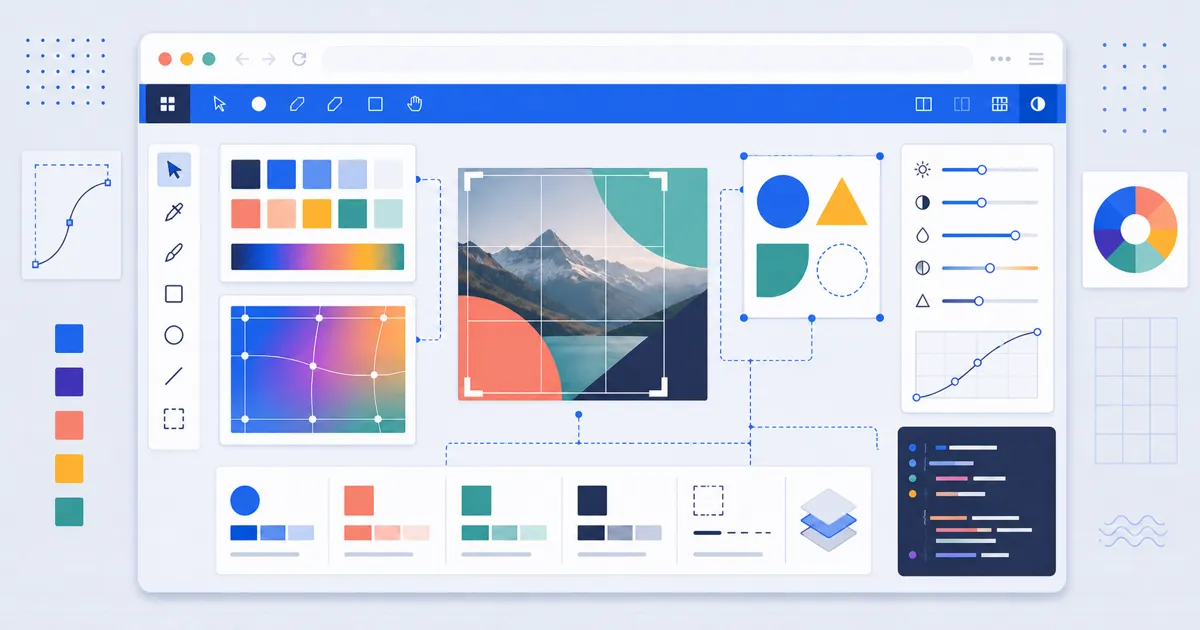
Choose a design tool for a specific output: a color value, an accessible color pair, an edited image, a CSS effect, or an icon asset. FindUtils provides focused utilities for those tasks. Check the output in its intended background, size, and application.
Color Tools
Color Palette Generator
The Color Palette Generator creates harmonious color schemes using color theory rules: complementary, analogous, triadic, split-complementary, and tetradic. Start from any base color and generate 5-color palettes instantly. Each color shows HEX, RGB, and HSL values with one-click copy.
Color Converter
The Color Converter translates color representations such as HEX, RGB, and HSL. A generic CMYK value is an estimate; final print color needs the printer’s profile and proof.
Image Color Extractor
The Image Color Extractor pulls the dominant color palette from any image. Upload a photo and get the top 5-10 colors with their HEX and RGB values — perfect for building a brand palette from a product photo or matching a website's colors to a hero image. The extractor reads the selected image for local color analysis. This describes that operation, not every network request from the page.
Color Name Finder
The Color Name Finder maps any HEX code to its closest named color. Enter #2E8B57 and learn it's called "Sea Green." Useful for writing readable CSS variable names, communicating colors to non-technical stakeholders, and finding the correct CSS named color for your shade.
Contrast Checker
The Contrast Checker evaluates foreground/background color pairs against WCAG 2.1 accessibility standards. It reports contrast ratios and pass/fail status for AA and AAA compliance at both normal and large text sizes. A ratio of 4.5:1 passes AA for normal text; 7:1 passes AAA.
WCAG defines technical accessibility requirements. A color-pair result does not establish legal compliance. Read the W3C contrast guidance for thresholds and exceptions.
CSS Generators
Gradient Generator
The Gradient Generator creates linear and radial CSS gradients with a visual editor. Add unlimited color stops, adjust angles and positions, and copy the generated CSS code. It outputs clean, cross-browser-compatible background properties ready to paste into your stylesheet.
Box Shadow Generator
The Box Shadow Generator creates CSS box-shadow values with visual controls for offset, blur, spread, color, and opacity. Add multiple shadow layers to create depth effects like Material Design elevation or neumorphic interfaces. Preview the shadow in real-time and copy the CSS with one click.
Glassmorphism Generator
The Glassmorphism Generator produces the frosted-glass UI effect trending in modern web design. Adjust blur, transparency, border, and background properties to create glassmorphic cards, modals, and navigation bars. The tool generates the complete CSS including backdrop-filter, background, border, and box-shadow — all the properties needed for the effect to work across browsers.
Image Editing and Processing
Photo Editor
The Photo Editor is a full-featured browser-based image editor with crop, resize, rotate, filters, text overlay, sticker placement, and drawing tools. It handles common design tasks without opening Photoshop or Canva: adding text to social media images, applying filters, cropping product photos, and creating quick compositions.
Image Compressor
The Image Compressor exports JPEG, PNG, WebP, and AVIF. Compare dimensions, visible detail, and output bytes. Lossy settings can change pixels; PNG compression effort is a separate control.
Image Resizer
The Image Resizer scales images to exact pixel dimensions or percentages. Lock aspect ratio to prevent distortion, or enter custom width and height for platform-specific requirements (1200x630 for Open Graph, 1080x1080 for Instagram square).
Image Converter
The Image Converter creates output in supported image formats. Choose the format from the destination’s requirements. Compare file size, transparency, and visible detail; a WebP conversion does not ensure a fixed reduction.
Social Media Image Resizer
The Social Media Image Resizer provides preset dimensions for every major platform: Instagram (1080x1080 feed, 1080x1920 stories), Facebook (1200x630 link, 820x312 cover), Twitter (1600x900), LinkedIn (1200x627), YouTube (1280x720 thumbnail), and more. Select a platform, upload your image, and export at the correct size.
Additional Image Tools
| Tool | What It Does |
|---|---|
| Image Eraser | Remove unwanted objects from photos by painting over them |
| EXIF Remover | Strip GPS location, camera info, and other metadata from photos before sharing |
| Photo Measurement | Measure distances and angles directly on images |
| Placeholder Image Generator | Generate placeholder images with custom dimensions, colors, and text for wireframes |
| Image to Base64 | Convert images to base64 data URIs for embedding in CSS or HTML |
Visual Asset Generators
Favicon Generator
The Favicon Generator creates favicons from any image, producing ICO, PNG, and Apple Touch Icon formats at all required sizes (16x16, 32x32, 48x48, 180x180, 192x192, 512x512). It generates the complete HTML <link> tags you need to paste into your <head>.
RealFaviconGenerator is the most thorough competitor, with per-platform customization for iOS, Android, and Windows. But it uploads your image to their servers. Favicon.io offers text-to-favicon generation, which FindUtils doesn't. For straightforward image-to-favicon conversion with client-side processing, FindUtils is the simplest option.
Font and Icon Search
The Font Icon Search searches across multiple icon libraries — Font Awesome, Material Icons, Lucide, Heroicons — from a single search box. Find the icon you need, copy the class name or SVG code, and use it immediately. No switching between library documentation sites.
SVG Path Visualizer
The SVG Path Visualizer renders SVG path data (d attribute) as a visual preview with control points highlighted. Paste a path string and see exactly what it draws. Indispensable for debugging custom SVG icons, understanding path commands (M, L, C, Q, A, Z), and editing paths manually.
3D and Advanced Design
3D Model Viewer
The 3D Model Viewer loads and renders GLTF/GLB 3D models directly in your browser using WebGL. Rotate, zoom, and inspect models without installing Blender or any desktop application. Useful for reviewing game assets, checking 3D product models, and previewing AR/VR content.
PBR Material Previewer
The PBR Material Previewer renders PBR (Physically Based Rendering) texture maps — albedo, normal, roughness, metallic, ambient occlusion — on 3D primitives (sphere, cube, plane). Upload your texture maps and see how they look under different lighting conditions. Essential for game artists and 3D designers validating material quality before importing into a game engine.
Complementary Tools for Designers
| Tool | Category | What It Does |
|---|---|---|
| Aspect Ratio Calculator | Calculator | Calculate equivalent dimensions when scaling images at a fixed ratio |
| Screenshot Tool | Productivity | Capture and annotate screen regions |
| Screen Resolution Detector | Network | Detect current screen resolution, pixel ratio, and viewport size |
| Media Info Viewer | Media | Inspect image/video file metadata, codec, dimensions, and bitrate |
| Code Screenshot Generator | Developer | Create beautiful code screenshots with syntax highlighting for sharing |
Choose by output requirements
| Task | Tool role | Review before use |
|---|---|---|
| Color palette | Palette generator | Color roles, contrast, and non-color cues |
| Print handoff | Color conversion | Printer profile and proof; generic CMYK is only an estimate |
| Image export | Compressor or converter | Dimensions, alpha, metadata, and visible detail |
| CSS effect | Gradient or shadow generator | Browser support and text contrast |
| Icon asset | Favicon or SVG tool | Destination format and required dimensions |
5 Common Design Mistakes (and How to Fix Them)
Mistake 1: Ignoring WCAG Contrast Requirements
Light gray text on a white background looks sleek until someone with low vision can't read it. WCAG AA requires a 4.5:1 contrast ratio for normal text. Run every text/background combination through the Contrast Checker before shipping. It takes 5 seconds and prevents accessibility complaints.
Mistake 2: Using Uncompressed Images on the Web
A large hero image can increase transfer work. Actual loading time depends on the connection, cache, dimensions, and page. Compare a smaller copy from the Image Compressor with the original, then measure the complete page.
Mistake 3: Picking Colors Without a Harmony Rule
Random color selection produces jarring palettes. The Color Palette Generator uses established color theory — complementary, analogous, triadic — to create palettes that inherently work together. Start from your brand's primary color and let the harmony rules guide the rest.
Mistake 4: Sharing Photos With EXIF Metadata
Every smartphone photo contains GPS coordinates, camera model, date, and sometimes your name in EXIF metadata. Sharing these photos online broadcasts your location. Run images through the EXIF Remover before posting to social media or sending to clients.
Mistake 5: Wrong Image Dimensions for Social Media
An image that looks perfect on your desktop can get cropped awkwardly on Instagram or Twitter. Each platform has specific dimension requirements. Use the Social Media Image Resizer to export at the exact dimensions each platform expects — no guessing, no cropping surprises.
Tools Used in This Guide
- Color Palette Generator — Generate harmonious color schemes with color theory rules
- Color Converter — Convert between HEX, RGB, HSL, HSV, and CMYK
- Image Color Extractor — Extract dominant colors from any image
- Color Name Finder — Find the closest named color for any HEX code
- Contrast Checker — Verify WCAG 2.1 color contrast compliance
- Gradient Generator — Create CSS gradients with a visual editor
- Box Shadow Generator — Generate CSS box-shadow with multiple layers
- Glassmorphism Generator — Create frosted-glass CSS effects
- Photo Editor — Edit images with crop, filters, text, and drawing tools
- Image Compressor — Reduce image file sizes while preserving quality
- Image Resizer — Scale images to exact pixel dimensions
- Image Converter — Convert between JPEG, PNG, WebP, and other formats
- Social Media Image Resizer — Export images at platform-specific dimensions
- Image Eraser — Remove unwanted objects from photos
- EXIF Remover — Strip metadata from photos for privacy
- Photo Measurement — Measure distances and angles on images
- Placeholder Image Generator — Generate placeholder images for wireframes
- Image to Base64 — Convert images to base64 data URIs
- Favicon Generator — Create favicons at all required sizes
- Font Icon Search — Search across multiple icon libraries
- SVG Path Visualizer — Visualize and debug SVG path data
- 3D Model Viewer — View GLTF/GLB 3D models in the browser
- PBR Material Previewer — Preview PBR texture maps on 3D primitives
- Aspect Ratio Calculator — Calculate dimensions at fixed aspect ratios
- Screenshot Tool — Capture and annotate screen regions
- Code Screenshot Generator — Create shareable code screenshots
FAQ
Q1: Does a palette guarantee accessibility? A: No. Check each foreground and background pair where it appears. Do not use color alone to communicate meaning.
Q2: Does a CMYK estimate replace a print profile? A: No. Final printed color depends on the profile, printer, ink, and paper.
Q3: Does image compression guarantee a smaller file? A: No. Compare exported bytes and visible quality. Some sources are already efficiently encoded.
Q4: Does a contrast check establish legal compliance? A: No. It checks a color condition. Accessibility and legal requirements include other conditions.
Q5: Can I use a generated CSS effect directly? A: Review the code in the destination component. Check support, contrast, and responsive behavior.
Q6: Does the browser editor replace a full design suite? A: Use a focused utility for a focused task. Collaboration, source-document editing, and publishing workflows may need additional tools.
What to Read Next
- Free Developer Tools That Replace Paid Software — 60+ dev tools including CSS formatters and code screenshot generators
- Color Palette Generator — Start building harmonious color schemes
- Gradient Generator — Create CSS gradients with visual controls
- Image Compressor — Optimize images for web performance