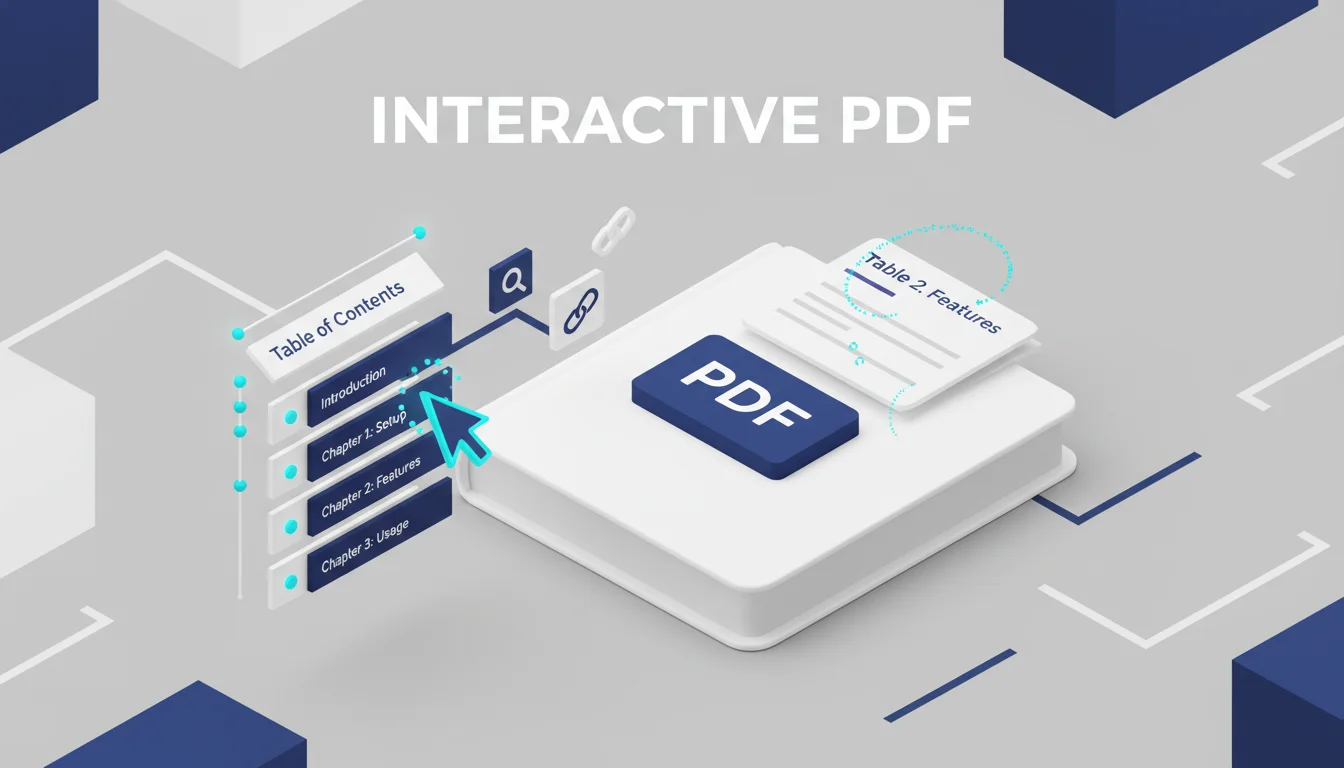
How to Create Interactive PDF Table of Contents for Long-Form Manuals
Imagine opening a 200-page technical manual to find a single troubleshooting step, only to realize you have to scroll manually through every page. It is frustrating, inefficient, and often leads to readers abandoning the document entirely. In the digital age, a static list of page numbers is no longer enough. To make your documents truly professional and user-friendly, you need a functional, clickable PDF Table of Contents.
An interactive index transforms a dense document into a searchable, navigable resource. By linking headings directly to their corresponding pages, you save your readers time and enhance the overall authority of your work. Whether you are a technical writer, a student, or a business professional, mastering the art of the interactive PDF is a vital productivity skill.
Table of Contents
- Why Interactive Navigation Matters for Long Manuals
- Step-by-Step Guide to Creating a Clickable Index
- How to Use PDF Editor for Better Document Structure
- Quick Tips for Professional PDF Navigation
- Common Mistakes to Avoid
- Conclusion
Why Interactive Navigation Matters for Long Manuals
When dealing with "long-form" content—anything over 15 to 20 pages—the user experience changes significantly. Readers are rarely looking to read the document from cover to cover; instead, they are looking for specific answers.
Enhanced User Experience
An interactive PDF Table of Contents acts as a GPS for your document. Instead of guessing where the "Installation Guide" starts, a user simply clicks the text and arrives there instantly. This is especially critical for mobile users who find scrolling even more tedious than desktop users.
Accessibility and Compliance
For many industries, digital accessibility is a legal requirement. Screen readers rely on properly tagged headings and logical structures to help visually impaired users navigate content. A well-structured PDF is not just a convenience; it is a necessity for inclusivity.
Professionalism and Brand Trust
A manual that is easy to navigate reflects well on the creator. It suggests that the author values the reader’s time. Using professional tools like PDF Editor ensures that your formatting remains consistent across all devices, reinforcing your brand's reliability.
Step-by-Step Guide to Creating a Clickable Index
Creating an interactive index usually begins in your word processor but ends in a dedicated PDF tool. Follow these steps to ensure your links work perfectly.
1. Use Styles in Your Source Document
Before you ever export to PDF, you must use "Heading Styles" (H1, H2, H3) in programs like Microsoft Word or Google Docs. Most PDF converters use these styles to automatically generate bookmarks. If you manually change font sizes instead of using styles, the PDF software won't recognize the structure.
2. Generate the Automated Table of Contents
Use the "Insert Table of Contents" feature in your writing software. Ensure the "Use Hyperlinks" option is checked. This creates the internal "anchors" that the PDF will later use to navigate.
3. Export as a Tagged PDF
When saving your file, choose "Save as PDF" or "Export" and look for options like "Create bookmarks using headings" or "Document structure tags for accessibility." This preserves the link data during the conversion.
4. Refine with PDF Editor
Sometimes the automated export misses a section or requires a specific link to an external website. Using PDF Editor, you can manually add or edit links to ensure the navigation is flawless.
How to Use PDF Editor for Better Document Structure
While word processors get you halfway there, a dedicated tool is often required for the final polish. This is where the PDF Editor becomes an essential part of your workflow.
If you have a PDF that was scanned or sent to you without an index, you don't have to start over from the original Word file. You can use the PDF Editor to overlay interactive elements directly onto the existing layout.
Step-by-step usage:
- Upload: Open your document in the PDF Editor.
- Identify Sections: Locate the Table of Contents page.
- Add Links: Select the "Link" tool. Draw a box over the text you want to make clickable.
- Set Destination: Choose "Go to a page view" and enter the page number where that section begins.
- Save: Apply the changes and download your newly interactive manual.
Example Scenario:
- Input: A 50-page "Employee Handbook" PDF with no clickable links.
- Action: Use PDF Editor to highlight "Benefits" in the index and link it to Page 34.
- Output: A user-friendly handbook where clicking "Benefits" instantly scrolls the reader to the correct section.
Quick Tips for Professional PDF Navigation
To make your manual stand out, consider these best practices for document design:
- Include a "Back to Top" link: On the footer of every page, add a small link that takes the reader back to the main Table of Contents.
- Use Descriptive Headings: Instead of "Section 1," use "Section 1: Initial Hardware Setup."
- Check Page Numbering: Ensure the page numbers listed in your index match the PDF's internal numbering (which can be different if you have a cover page).
- Limit Depth: Don't include every single sub-heading in the Table of Contents. Stick to H1 and H2 levels to avoid clutter.
- Visual Cues: Make sure your clickable text looks clickable (e.g., blue or underlined), or mention at the start that the document is interactive.
- Test on Mobile: Always open your final PDF on a smartphone to ensure the touch targets for the links are large enough.
Common Mistakes to Avoid
- Broken Links after Merging: If you merge multiple PDFs into one, your Table of Contents links often break. Always re-verify links after merging files using PDF Editor.
- Using "Print to PDF": Using the "Print" command often strips out all interactive elements. Always use "Export" or "Save As" to keep links active.
- Ignoring the Sidebar: Many readers use the PDF sidebar (bookmarks) rather than the page-based index. Ensure your PDF has "Bookmarks" enabled in the document properties.
- Fixed Page References: If you add a new page at the beginning of the document, all subsequent page links will be off by one. Always finalize your content before setting the links.
- Over-complicating the Layout: Too many links in a small area can lead to "fat finger" errors on mobile devices. Keep your index clean and spaced out.
Conclusion
Creating an interactive PDF Table of Contents is one of the simplest ways to transform a standard manual into a high-quality professional resource. By focusing on structure, using heading styles correctly, and refining the final product with a dedicated PDF Editor, you provide a seamless experience for your readers.
Don't let your hard work get lost in a sea of pages. Take the extra five minutes to link your sections and ensure your audience can find exactly what they need, when they need it.
Ready to polish your manual? Try organizing and linking your document today with the PDF Editor.